How to Make an Invoice in Excel: Formulas, Examples, and Common Mistakes
Build an Excel invoice with item totals, subtotals, tax, deposit credits, and a clean printable layout, with formulas you can verify.
Set up a simple worksheet structure
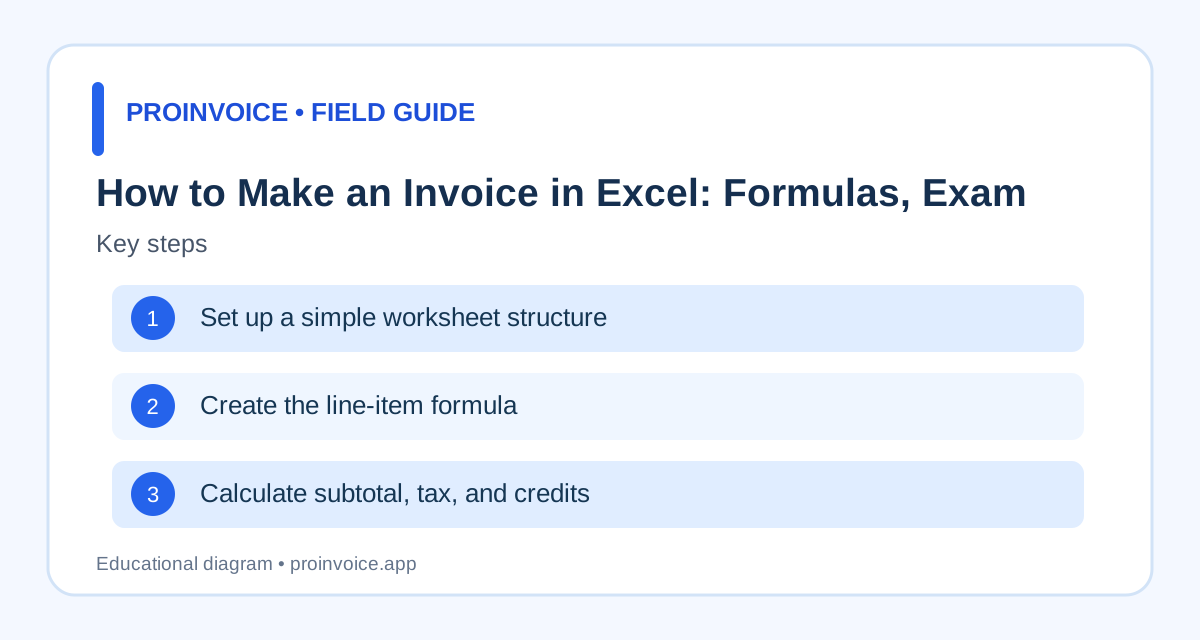
Start with a new workbook and reserve the top rows for the seller name, billing customer, invoice number, issue date, and due date. Use a separate section for line items with columns for description, quantity, unit price, and amount. Put the subtotal, applicable tax, deposits, and balance due below the item table. Avoid merged cells in areas where you will sort or copy formulas. Keep currency and date formats consistent. A clean worksheet should be understandable when printed or exported to PDF, not only while editing. Add a clear service period or job address if your customer needs it. Excel can calculate totals, but it will not verify that work was authorized or that the customer has paid. Compare a completed workbook with an invoice template before sending it.
Create the line-item formula
Suppose quantity is in column B, unit price in column C, and amount in column D. On row 12, enter =B12*C12 in D12. Copy the formula down for every line item. Four hours at $75 produces $300. If a customer purchased two items at $45 each, that row produces $90. Check that the quantity and rate cells contain numbers rather than text, which can lead to unexpected results. Use a consistent number format for currency, and decide how to handle fractional quantities or hours. If your business bills a fixed fee, enter quantity 1 and the agreed amount as the unit price. Label the description clearly so the buyer recognizes the work. Test the formula with a known example before relying on it for customer billing.
Calculate subtotal, tax, and credits
If line amounts occupy D12 through D20, a subtotal formula is =SUM(D12:D20). Place the subtotal in a separate cell, such as D22. If the taxable base is correctly determined and a rate is stored in C23, a simple illustrative tax formula is =D22*C23. This formula is not universally appropriate because taxability varies by item and jurisdiction. A deposit can be recorded as a separate credit, and the balance formula should subtract it once. For example, a $600 subtotal less a $150 deposit is $450 before any additional authorized charges. Use cell references rather than typing totals manually, and protect formulas from accidental replacement where practical. Verify the tax treatment with appropriate guidance rather than relying on the spreadsheet alone.
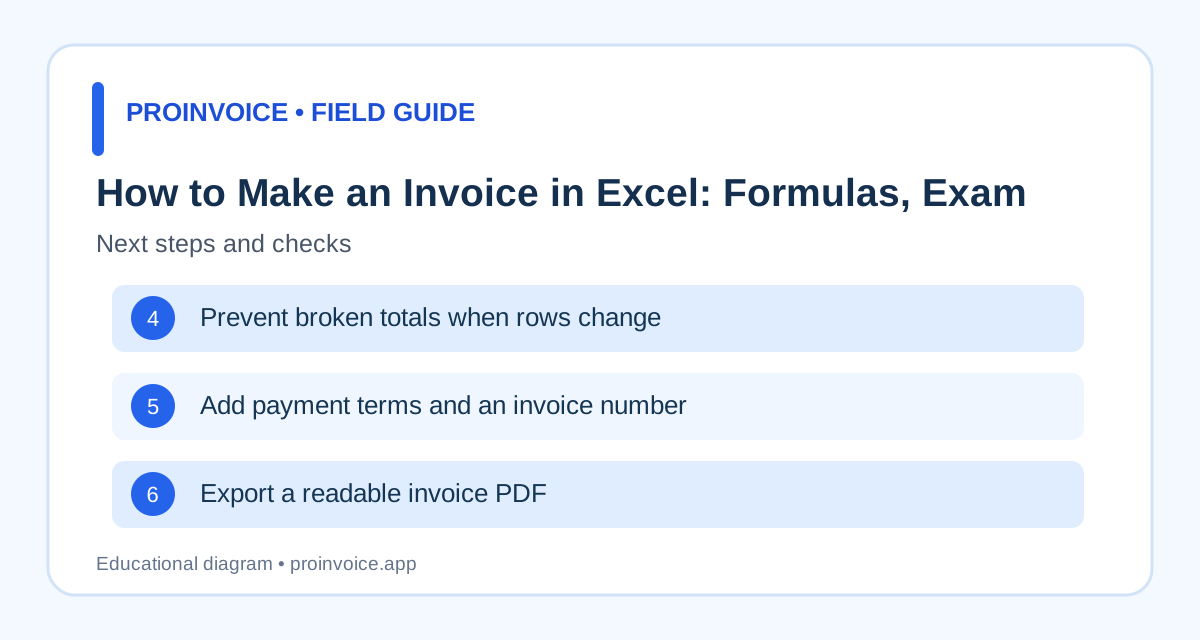
Prevent broken totals when rows change
Spreadsheets are vulnerable to subtle errors. If you insert a new line outside the SUM range, the subtotal may omit it. If you delete rows, formulas may point to the wrong cells. Check formulas after structural edits and consider using an Excel Table to manage expanding line items. Keep input cells visually distinct from calculated cells, but do not depend on color alone to communicate meaning. Verify that discounts and deposits have the correct sign. A negative number entered in the wrong column can produce a misleading balance. Test the workbook with zero quantities, multiple line items, and a partial payment. Preview the printed area to make sure the amount due is not cut off. For businesses issuing many invoices, these manual checks can become a significant operational cost.
Add payment terms and an invoice number
The worksheet should state a unique invoice number, issue date, due date, and accepted payment methods. Use a numbering convention that is not duplicated when someone copies the workbook. A file named Invoice-final-final.xlsx is not a substitute for a unique invoice identifier. If you share the workbook with staff, define who assigns numbers and where completed invoices are archived. Put the customer's billing entity and purchase order reference in visible cells. If payment is due after a milestone, identify that milestone rather than assuming every invoice uses the same terms. Late fees should only be included when authorized and lawful. Read understanding payment terms before choosing a default policy.
Export a readable invoice PDF
Before sending, use print preview to inspect page breaks, scaling, margins, and the amount-due section. Set the print area to exclude unused spreadsheet cells. Confirm that long descriptions wrap without hiding rates or amounts. Export the customer-facing invoice as a PDF when appropriate, while keeping the editable workbook in your internal records. Do not email a workbook containing private notes, hidden customer data, or formulas you did not intend to share. Check that the PDF opens on a phone and that any payment instructions are legible. If the invoice is revised, retain a traceable record of the correction. A PDF preserves the layout better than an editable spreadsheet, but it does not automatically track payment status.
Know when to move beyond Excel
Excel is useful for occasional invoices and custom calculations, but a growing business may need customer records, estimate approvals, deposits, payment links, reminders, and reconciliation. Consider the time spent copying files, assigning invoice numbers, checking formulas, and recording payments. If an invoice takes ten minutes to create and you issue sixty per month, that is ten hours of preparation before follow-up. This is an illustrative calculation, not a promised software saving. Compare ProInvoice features and pricing with the actual tasks you perform. The best system is one you can audit and maintain reliably, whether it is a spreadsheet or an invoicing application.
Use an Excel Table to keep line items manageable
Converting your line-item range into an Excel Table can make expanding a worksheet more predictable. Tables automatically extend formatting and calculated columns in many common workflows, reducing the chance that a new item sits outside the original subtotal range. Give columns clear labels such as Description, Quantity, Unit Price, and Amount. Test the table by adding a new row and confirming the calculated amount appears. If you use structured references, document them so another employee can maintain the workbook. Be careful when copying a template into a different spreadsheet application because formula behavior may vary. A Table is not a substitute for reviewing the totals. Check whether hidden rows, filters, or accidental overwrites affect what appears on the exported invoice. Keep a clean master template and save issued invoices as separate records.
Handle discounts without confusing the total
Discounts may apply to a particular line item or to an entire invoice, and those methods can produce different results. Decide which one matches the agreement before entering formulas. For example, a $500 service discounted by 10% becomes $450 before any applicable tax or additional charges. A fixed $50 discount produces the same arithmetic in this example, but not necessarily for other invoice amounts. Display the discount so the customer can see how the final balance was calculated. Avoid subtracting it twice by reducing the line-item price and also entering a separate credit. Check tax treatment where discounts affect the taxable base. If the discount was conditional on early payment, verify whether the customer met the condition before applying it. Preserve the original price and adjustment for a clear audit trail.
Record deposits and multiple payments
Use separate fields for deposits and payments already received, rather than changing the original subtotal. Suppose the invoice total is $1,800 and the customer paid a $400 deposit and a later $250 installment. The remaining balance is $1,150 if no other adjustments apply. In Excel, you can calculate the balance by subtracting a SUM of payment entries from the invoice total. Keep the date and payment reference for each entry in an internal ledger; the customer-facing invoice may summarize credits without displaying every internal detail. Avoid mixing the processor's net payout with the gross amount the customer paid. If a refund occurs, record it as an appropriate reversal or adjustment and recalculate the balance. Reconcile the spreadsheet against actual bank and processor records regularly.
Protect the master workbook from accidental edits
Create a master template that staff duplicate rather than overwrite. Mark editable input cells and consider protecting formula cells to reduce accidental deletion. Protection is a convenience feature, not a complete security measure. Keep sensitive internal notes and customer lists in appropriate secured systems instead of hidden worksheet columns that may travel with emailed files. Establish who is responsible for assigning invoice numbers and verifying payments. When changing formulas, test a sample with known quantities, discounts, tax, and deposits before issuing live invoices. Use version control or dated backups for the template so an incorrect change can be traced. A simple documented procedure can prevent different employees from maintaining incompatible versions of the same invoice.
Worked example: a contractor invoice in Excel
Imagine a small repair job with five labor hours at $70, two replacement parts at $45 each, and an approved $60 disposal fee. The line amounts are $350, $90, and $60, producing a $500 subtotal before applicable tax. If the customer paid a $150 deposit, the remaining amount is $350 before any tax adjustment. Enter each item on its own row so the customer can understand the work. Verify that the subtotal formula includes all three rows and that the deposit is subtracted once. Add the correct billing customer, job address, invoice number, issue date, and due date. Export the sheet to PDF and check page breaks. This exercise is useful because it tests formulas and customer readability at the same time.
Add validation to an Excel invoice template
A few spreadsheet safeguards can reduce common entry errors. Use data validation for quantities and rates where appropriate, such as preventing negative hours unless the field is intentionally used for credits. Format dates consistently and make the invoice number easy to locate. Check whether text accidentally entered into a numeric field causes an error or a misleading zero. Add a visible warning if required customer or due-date fields are blank, but remember that formulas are only as reliable as their assumptions. Protect calculated cells from accidental overwriting and keep a separate editable master. When changing the layout, test the worksheet with several rows and a deposit before issuing a real invoice. Validation improves consistency but does not replace a human review of scope, tax treatment, and authorization.
Track overdue invoices outside the workbook
A static Excel invoice does not automatically know whether a customer paid. Maintain a separate ledger with invoice number, customer, issue date, due date, amount, payments, and outstanding balance. Use formulas to calculate remaining balances and overdue days, but check the underlying payment records before sending reminders. If a customer pays part of an invoice, record that transaction instead of simply editing the original amount. If a refund occurs, preserve the payment and adjustment history. For repeat customers, review open balances before creating a new invoice. A ledger helps prevent duplicate follow-up and provides a clearer cash-flow picture than a folder of PDFs. Consider a dedicated billing system when maintaining this information becomes burdensome.
Check Excel invoice accessibility and print quality
An invoice must remain understandable when a customer prints it or opens it on a phone. Use legible text, descriptive headings, and sufficient contrast rather than relying only on colored cells. Avoid very small type caused by forcing a wide worksheet onto one page. Check that descriptions wrap, the amount due remains visible, and no hidden columns reveal internal notes. Use consistent currency symbols and date formats. Add plain-language payment instructions rather than relying on icons. Export to PDF and inspect the actual file before sending. If the customer uses assistive technology, a structured digital invoice may be easier to navigate than an image-only PDF. Accessibility and clarity are part of professional billing, not optional decoration.